AI design coach for Tinkercad · ages 8–14

The design coach that never does it for them.

TinkerBuddy sits inside Tinkercad. It helps your child plan their build, rings the exact button to press, notices when each step is done and explains why. They do every click themselves.

No student accountsNo adsNever stores what kids type or say
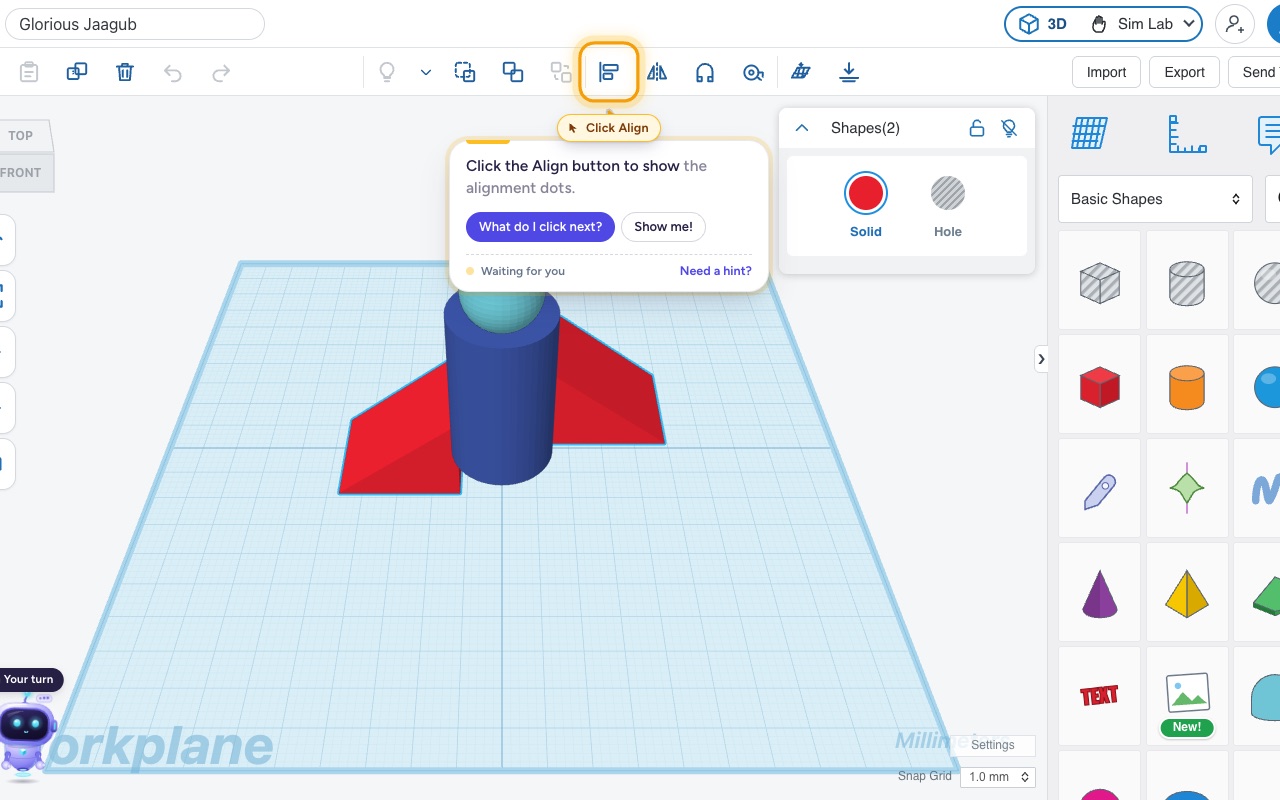
TinkerBuddy ringing the Align button in Tinkercad, with a speech bubble saying Click the Align button to show the alignment dots
Part 2 of 4 · Wings
✓Step checked
How it works

Their idea. Their clicks. A coach at their side.

Kids learn CAD by building things they care about. TinkerBuddy turns “I want a rocket” into a plan, then coaches one small step at a time.

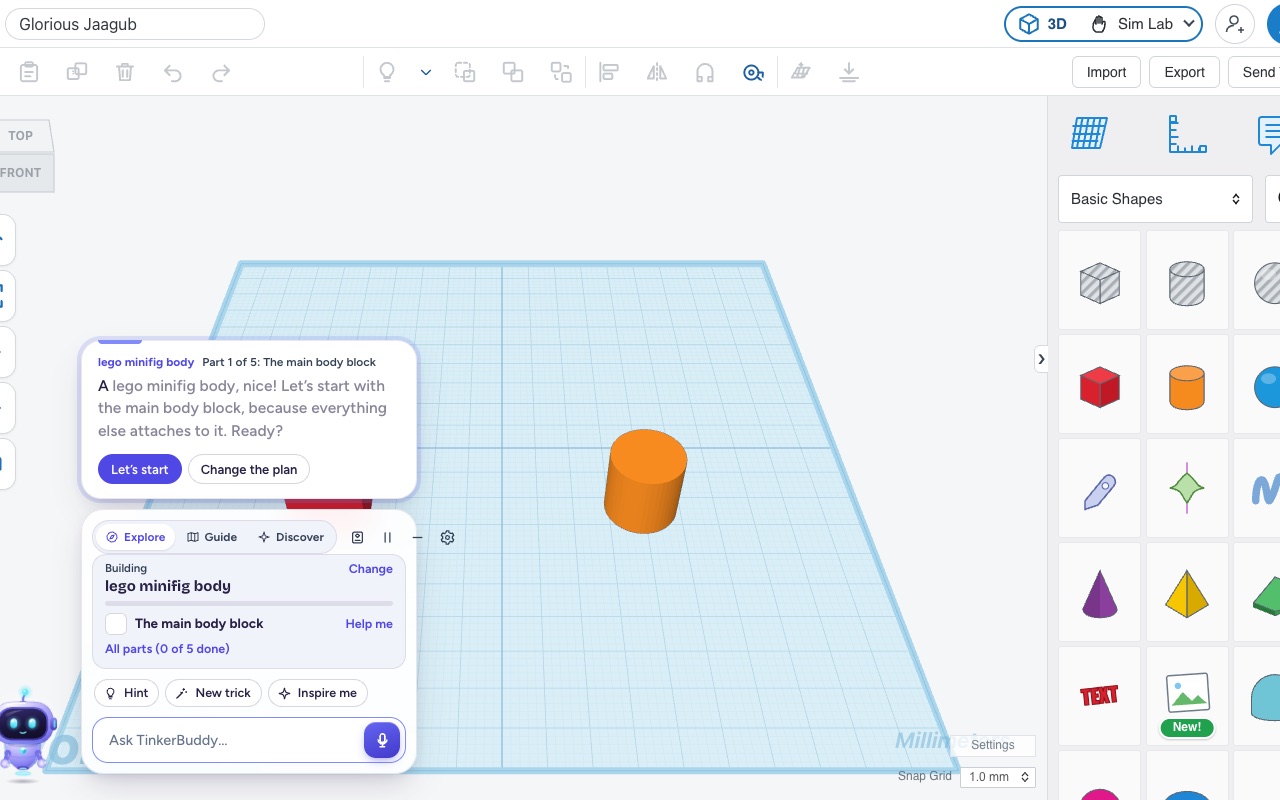
A project plan card: Part 1 of 4
1 · Plan

Plans the project with them

Breaks their idea into 3–6 parts, like “body”, “fins”, “window”, and shows “Part 2 of 5” as they go.

The Align button ringed in amber
2 · Point

Rings the exact button

An amber ring shows which Tinkercad button to press next, and a short line says why it helps their build.

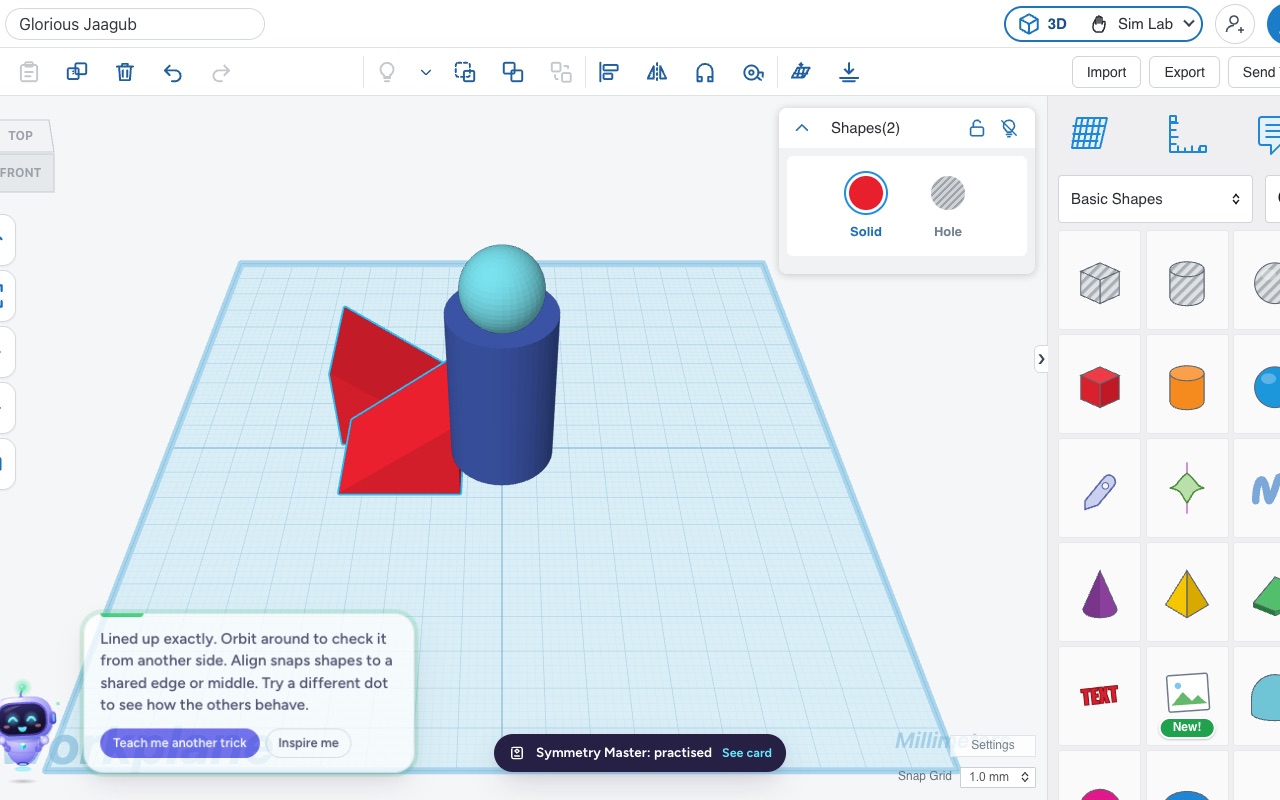
A green tick when the step is done
3 · Check

Notices when it’s done

A green tick when the step worked, the next step straight away, and kind help when something goes wrong.

It can’t take over.
TinkerBuddy can’t click, drag or change their design. If they ask it to build it for them, it says it’s their creation and offers the first small step.

For families and classes

See their progress, not their private words.

Give your child or class a short code. You get a private dashboard of learning moments. Never what they type or say.

For families

  • Free, with a daily AI limit you control
  • Skills they’ve practised and parts they’ve finished
  • Pause AI answers, switch voice or pictures off
  • Works in Chrome and Microsoft Edge on a laptop or desktop
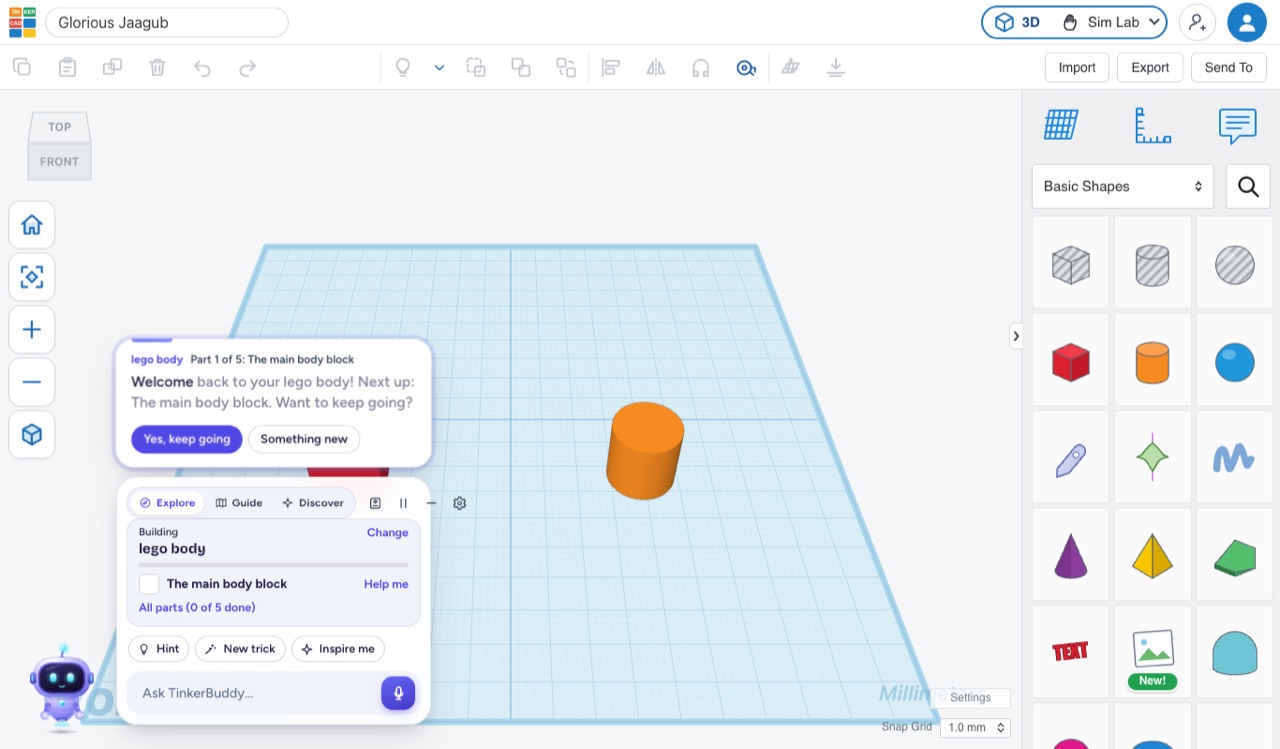
TinkerBuddy welcoming a learner back to their project, with the next part to build

For teachers

  • Students join with a class code. No accounts, no emails
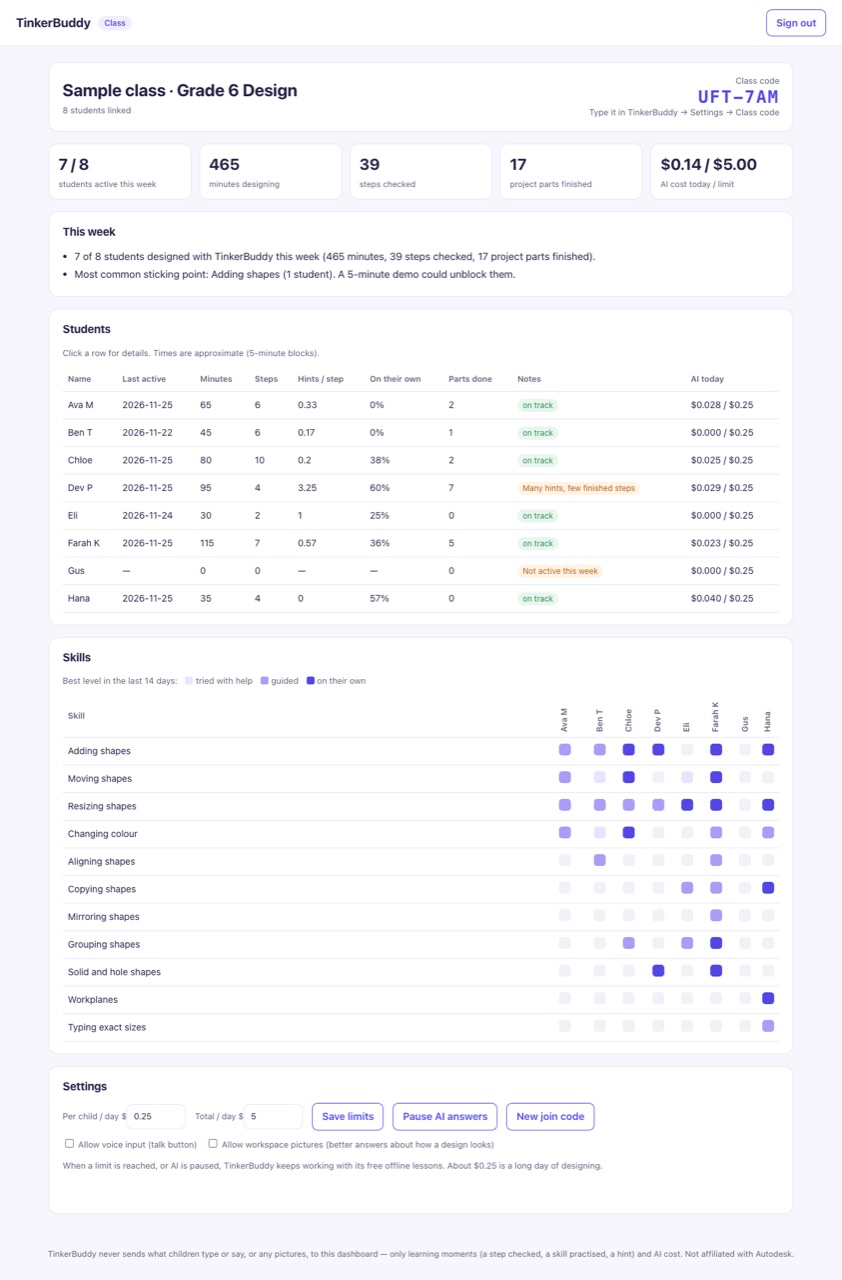
  • Who’s stuck, hints per step, skills across the class
  • Class-wide AI limits, pause, voice and picture switches
Teacher dashboard with minutes, steps checked and a skills grid
Privacy first

Built for kids, so we keep almost nothing.

No accountsNo names, emails or passwords from children. A code links them to you.
Nothing keptQuestions, answers and pictures of the design are never stored.
No ads or sellingNo tracking across websites. No AI training on children’s data.
Deleted on timeLearning moments are deleted after 90 days. Leave or remove at any time.

Read the full privacy policy. Schools: we sign student data privacy agreements on request.

Start free

Set up in a minute.

Pick family or class. You’ll get a code for your child or students, and a private code for your dashboard. No account, no email.

Questions

Does it do the design for my child?

No. It can’t click, drag or change anything in Tinkercad. It plans with them, points at the right button and checks the step. They do the work and keep the credit.

What does it cost?

Free to start for families and classes, with a daily AI limit so costs stay predictable. We’ll tell you well before any paid plans start, and nothing changes without your say.

What do I need?

A free Tinkercad account and Chrome or Microsoft Edge on a laptop or desktop. Tablets and phones aren’t supported.

Which AI does it use, and is my child’s data used to train it?

Answers come from Anthropic’s Claude, through our own server. Anthropic doesn’t use this data to train its models, and we don’t store the questions, answers or pictures. TinkerBuddy tells children it’s an AI program, not a person.

Can my school use it?

Yes. Create a class, give students the class code and set the switches you want (AI limits, voice, pictures). We’ll sign your district’s student data privacy agreement on request: write to us at the address in the privacy policy.

Is this made by Tinkercad or Autodesk?

No. TinkerBuddy is an independent product that works alongside Tinkercad. Tinkercad is a trademark of Autodesk, Inc.